How to Live Stream on YouTube: The Complete Creator's Guide
YouTube is the one major platform where a livestream does not disappear when you end it. The moment you stop streaming, your broadcast becomes a regular YouTube video that anyone can find, watch, and share for years. That makes YouTube genuinely different from TikTok, Instagram, and Twitch, and it is why a lot of serious creators end up going live there even when their main audience lives somewhere else.
This guide walks through everything: how to live stream on YouTube from any device, the requirements you need to unlock different features, how creators get paid, and how to turn one live broadcast into months of evergreen traffic.
Let's get into it.
How to live stream on YouTube (step by step)
YouTube gives you three ways to go live, and the right one depends on your setup. Here is how to live stream on YouTube from each.
Option 1: From your phone (Mobile Live)
The simplest way to go live on YouTube, but with the highest follower bar.
- Open the YouTube app and tap the + at the bottom.
- Tap Go live.
- Choose between video or audio-only.
- Add a title, thumbnail, privacy setting, and category.
- Tap Next, then Go live.
Option 2: From a webcam (Browser-based)
The easiest way to go live from a computer, no extra software required.
- Sign in to YouTube on a desktop browser.
- Click the Create button (the video camera icon) in the top right.
- Select Go live.
- Choose Webcam in YouTube's Live Control Room.
- Add your title, thumbnail, and settings.
- Click Go live when ready.
Option 3: Via streaming software (Encoder)
The most flexible option, supporting overlays, multiple cameras, and screen sharing. Use OBS, Streamlabs, or similar.
- In the YouTube Live Control Room, select Stream.
- Copy your stream key from the settings panel.
- Open OBS (or your software of choice) and paste the stream key into Settings > Stream.
- Set up your scenes (camera, screen capture, overlays).
- Hit Start Streaming in your software, then start the stream in YouTube's Live Control Room.
That's it. Once you are live, viewers can subscribe, chat, send Super Chats, and (if you allow it) join via co-streaming features.
YouTube Live requirements: who can actually go live
Here is where YouTube gets confusing, because the requirements depend on how you want to go live.
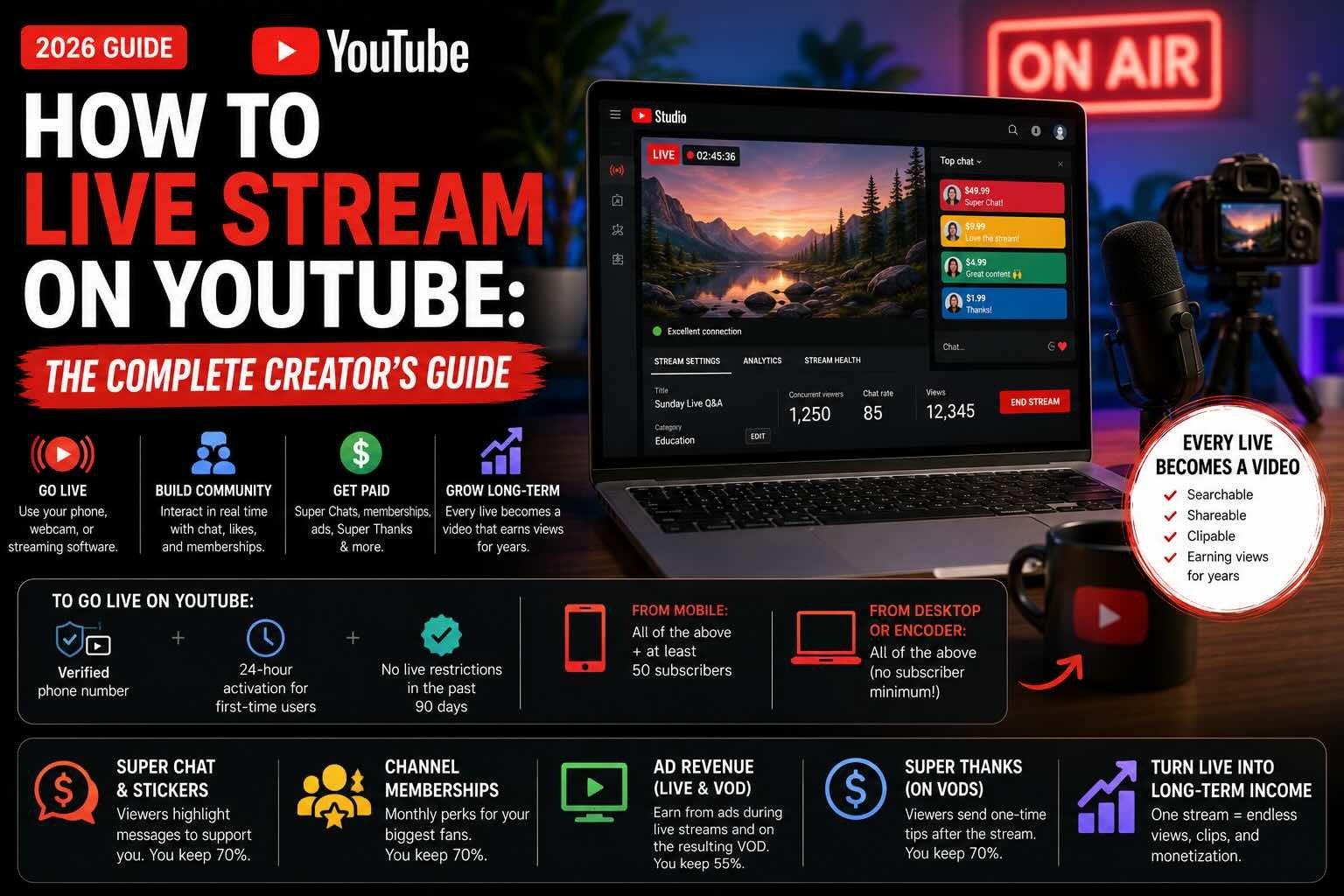
To go live from a desktop or via an encoder:
- A YouTube account
- A verified phone number
- No live-streaming restrictions in the past 90 days
- 24-hour wait period for first-time live streaming after verification
To go live from a mobile phone:
- All of the above, plus at least 50 subscribers
Note that mobile app streaming also requires you to be 18 or older. If you are 13 to 17, you can still go live, but you have to stream from a desktop browser or via an encoder.
So if the Go Live option is missing on your phone, that is almost always why: you need 50 subs first. The desktop and encoder paths do not have the 50-sub requirement, which is a workaround a lot of small creators do not know about. If you have fewer than 50 subs, you can still go live, just do it from a computer.
This is one of the few areas where YouTube is more forgiving than TikTok or Instagram, both of which require 1,000 followers across the board. (For the gaming and IRL crowd, Twitch is the closest YouTube alternative and has no follower minimum either.)
How to live stream on YouTube from a phone without 1,000 subscribers
Worth calling out directly because it confuses people: YouTube's mobile live streaming requires 50 subscribers, not 1,000. That is much lower than the 1,000-follower bar on TikTok and Instagram. If you have fewer than 50 subs, you have two options:
- Stream from a computer instead. The desktop and encoder paths have no subscriber minimum. You only need a verified YouTube account.
- Get to 50 subs first. This is usually achievable in a few weeks of consistent uploads, especially if you cross-promote on other platforms.
How to enable live streaming on YouTube
Even when you meet the requirements, live streaming is not enabled by default on every account. Here is how to enable live streaming on YouTube:
- Go to studio.youtube.com and sign in.
- In the top right, click the Create icon (the camcorder).
- Click Go live.
- If this is your first time, YouTube will prompt you to verify your account by phone.
- Verify, then wait up to 24 hours for live streaming access to activate.
If the Go Live button is grayed out, the most common reasons are: unverified phone number, an active community guidelines strike, or you are inside the 24-hour activation window after verifying. All of those resolve on their own with time and verification.
How creators get paid on YouTube Live
This is where YouTube really separates itself, because the monetization options are deeper than any other live platform. Here is the full picture.
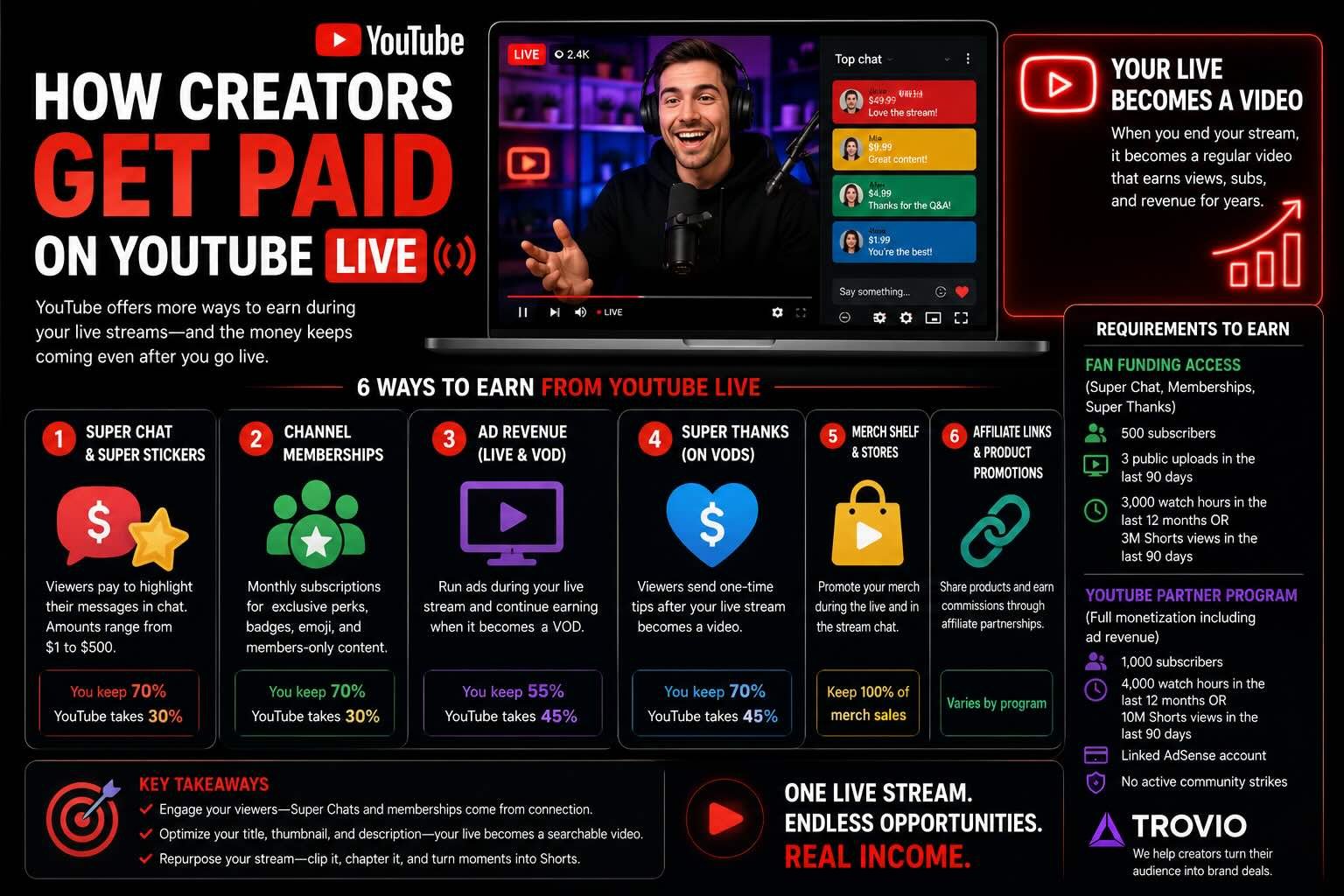
Super Chat and Super Stickers
Viewers pay to highlight their messages in chat during your live stream. Super Chat amounts range from $1 to $500, with longer pinned times for higher amounts. YouTube takes 30%, you keep 70%, which is one of the better splits on any live platform.
Channel memberships
Viewers can subscribe to your channel for monthly perks: exclusive emoji, members-only videos and livestreams, badges in chat. Tiered pricing typically starts at $4.99/month. YouTube takes 30%, you keep 70%.
Ad revenue from live streams
If your channel is in the YouTube Partner Program (covered below), you can run ads during your live broadcasts, and those ads continue earning when the stream becomes a VOD. The standard 55/45 split applies (you keep 55%). The VOD revenue is genuinely the killer feature, your live broadcast can earn ad revenue for years.
Super Thanks
After your live stream becomes a VOD, viewers can send one-time tips of $2 to $50 on the recorded video. Also 70/30.
Merch Shelf and YouTube Shopping
Once you are in the Partner Program (either tier), you can sell your own products directly through your channel and link merch in your video descriptions, live chat, and stream overlays. You keep 100% of merch sales (minus the fulfillment costs from whichever partner you use, like Spring or Fourthwall). For creators with a product or brand, this is genuinely the highest-margin revenue stream on YouTube.
Affiliate links and product promotions
You can also share affiliate links to products you recommend and earn commissions through partner programs. Commission rates vary by program, but unlike the platform features above, this revenue does not go through YouTube at all, so there is no split. It is between you and the affiliate program.
YouTube Partner Program (YPP) eligibility:
- 1,000 subscribers
- AND either 4,000 watch hours in the last 12 months OR 10 million Shorts views in the last 90 days
- Linked AdSense account
- No active community strikes
- Live in a country where YPP is available
Once you hit YPP, all of the above monetization options unlock.
The lower-tier monetization (Fan Funding):
In 2023, YouTube introduced a lower threshold for fan-funding features (Super Chat, memberships, Super Thanks) without full ad-revenue access:
- 500 subscribers
- 3 public uploads in the last 90 days
- 3,000 watch hours in the last 12 months OR 3 million Shorts views in the last 90 days
This is great news for smaller creators: you can earn from Super Chats and memberships well before you qualify for ads.
The unique advantage: your live stream becomes a video
This is the part most creators miss. On TikTok, Instagram, and Twitch (sort of), your live broadcast effectively disappears when it ends. On YouTube, it becomes a regular video on your channel, fully searchable, shareable, and embeddable.
A few practical implications:
- A 90-minute live Q&A becomes a 90-minute video. It can rank in search and earn ad revenue for years.
- You can clip highlights into Shorts within minutes of ending the stream. YouTube's editor lets you grab moments directly from the VOD.
- Chapters matter. Add timestamps to long live streams so viewers can jump to the parts they care about. This dramatically increases watch time on the VOD.
- The thumbnail and title matter twice. First during the live broadcast, again as the video lives on your channel. Spend a few extra minutes optimizing both.
For creators who think of live streams as one-time events, this changes the math. A YouTube Live is a content investment, not just a broadcast.
Tips for growing on YouTube Live
A few things that genuinely move the needle:
- Schedule streams in advance. YouTube lets you create a scheduled live event ahead of time, with a watch page that viewers can subscribe to. This builds anticipation and gives you a permanent URL to share.
- Engage by name. Same as every platform: read viewer names from chat, respond to questions, make people feel seen. Retention on YouTube Live skews older than TikTok, so a slower, more conversational pace works better than rapid-fire.
- Use Premieres for hybrid content. A Premiere is a pre-recorded video that releases at a set time with a live chat. It is not quite a live stream, but it is one of YouTube's best-kept growth tools for creators who want the community engagement of live without the production stress.
- Stream length matters less here. Unlike TikTok or Instagram, where shorter is better, YouTube Live rewards longer sessions because longer sessions produce longer VODs with more search potential.
How creators turn YouTube Live into real income
Super Chats and memberships are great. Some YouTube creators earn meaningful money from them alone. But here is the honest part, the same truth that applies to every platform we have covered.
The biggest income in the creator economy does not come from platforms paying you for your audience. It comes from brands paying you to reach their customers. A single brand partnership can be worth more than a year of Super Chats for most creators. The challenge is that landing brand deals usually means having representation, and most creators do not have an agent.
That is the gap Trovio closes. We give creators of all sizes the tools that agents bring to the top 1%: brand matching, media kits, pitching, and analytics, without taking a cut of your deals. Going live builds your audience. Trovio helps you turn that audience into income.
Quick FAQ
How many subscribers do you need to go live on YouTube? 50 subscribers to go live from a mobile phone. No subscriber minimum to go live from a desktop or via an encoder. Most monetization features require 500 to 1,000 subscribers.
How do you enable live streaming on YouTube? Go to studio.youtube.com, click the Create icon, then Go live. If it is your first time, verify your phone number and wait up to 24 hours for activation.
Can you live stream on YouTube without subscribers? Yes, from a desktop or via an encoder. The 50-subscriber minimum only applies to mobile live streaming.
Do you make money going live on YouTube? Yes, more ways than almost any other platform: Super Chats, channel memberships, ad revenue (live and on the resulting VOD), and Super Thanks. Splits are typically 70/30 in your favor for fan funding, 55/45 for ad revenue.
What are the requirements to enable monetization on YouTube Live? Either 500 subs + 3,000 watch hours + 3 uploads in 90 days for fan funding only, or 1,000 subs + 4,000 watch hours (or 10M Shorts views in 90 days) for full Partner Program access including ad revenue.
How long can a YouTube live stream be? Up to 12 hours per stream, though there is no daily limit on how many streams you can do.
Ready to grow the audience that makes going live worth it? See how Trovio helps creators land brand deals →